Everything you need to prep your script
Import any PDF, create indexed blocking and cues, block your scenes on ground plans, and export a complete prompt book — all in one place.
The core of your prompt book
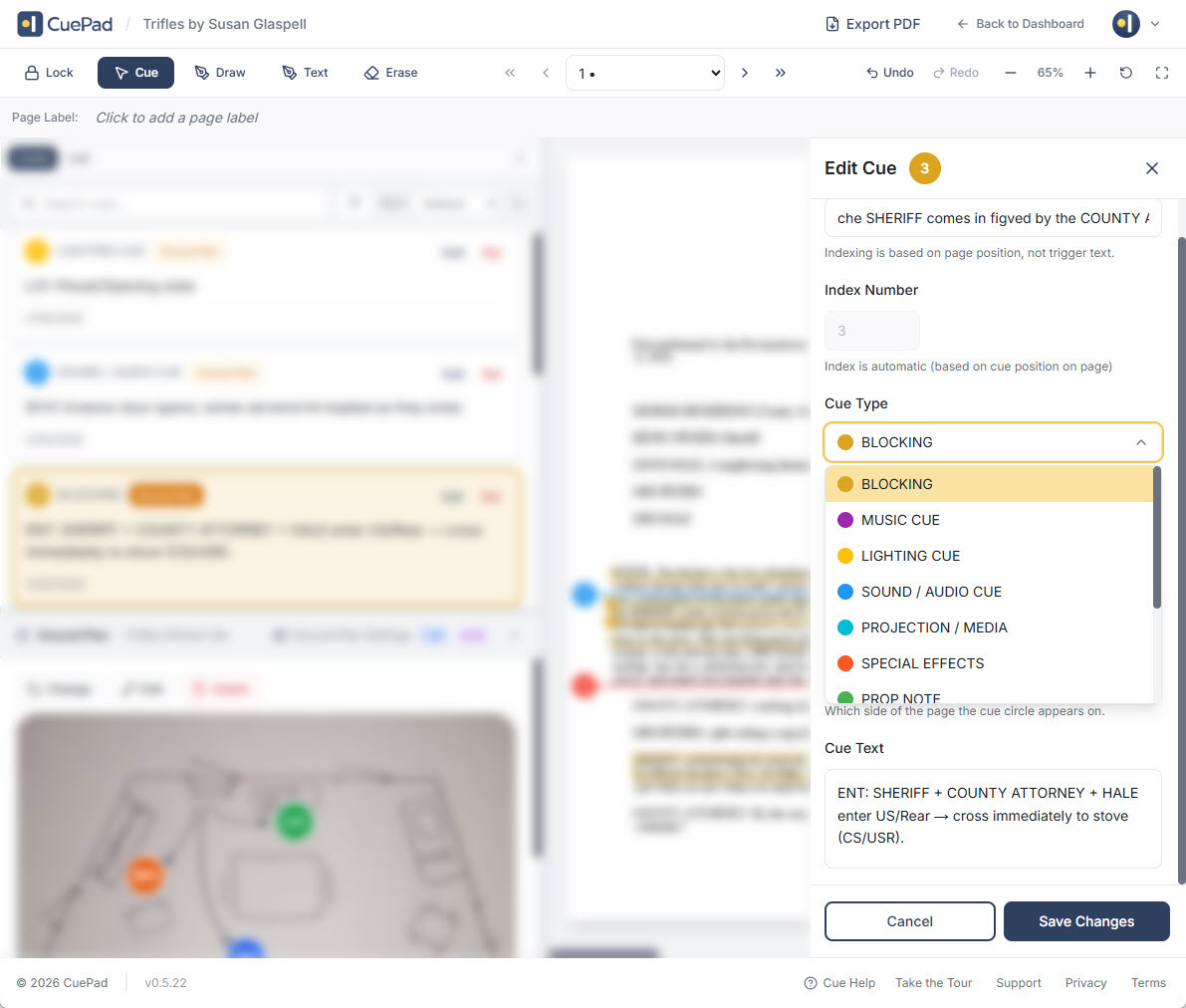
Color-Coded Cue System
Select trigger text with your mouse or stylus, or long-press anywhere on your script to place a cue exactly where it belongs. Each cue is automatically indexed, color-coded by type, and visually connected to its trigger text with adjustable connector lines. Add optional reference codes with custom prefixes for quick identification.
- Select trigger text directly or long-press to place cues precisely
- Automatic cue indexing with customizable reference codes
- Visual connector lines linking each cue to its trigger text
- Adjustable colors, line styles, thickness, and opacity per cue type
- Filter and sort cues by type, page, or description
Print-ready in one click
Prompt Book PDF Export
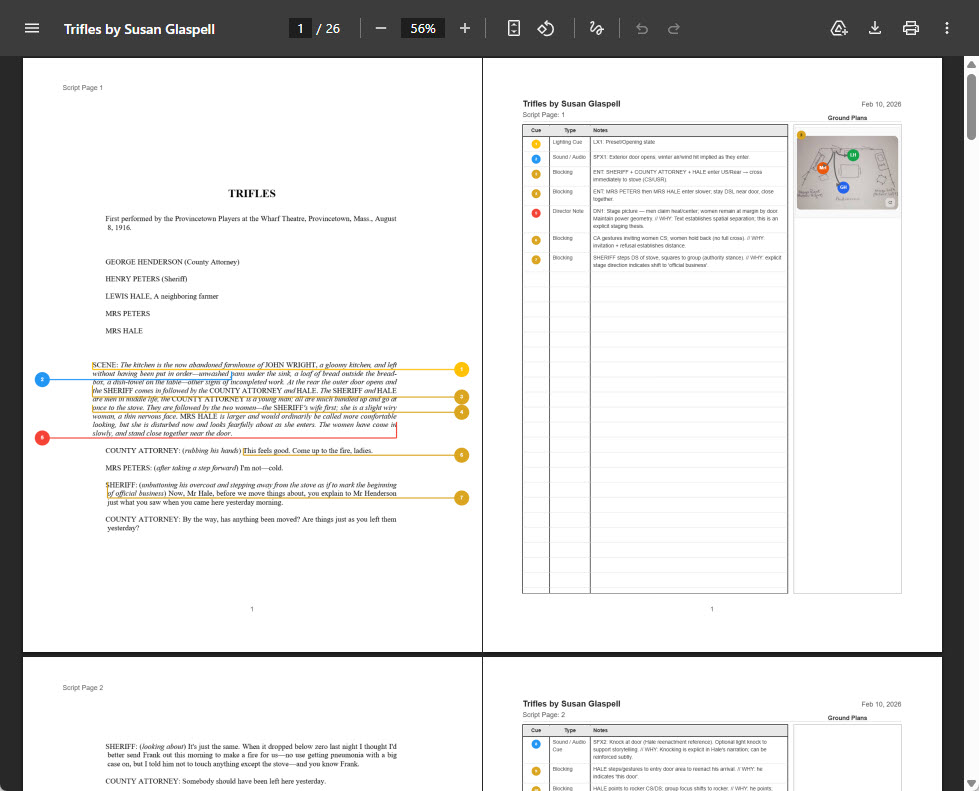
Export a complete Prompt Book PDF with all your cues, blocking diagrams, annotations, and ground plans rendered directly onto the pages. Configure exactly what to include — page range, cue types, annotation layers — and generate a professional document ready for rehearsal or archiving.
- All cues, connector lines, and annotations baked into the PDF
- Ground plan snapshots included alongside their associated cues
- Per-script settings for page range, quality, and content layers
- Download or share a print-ready prompt book instantly
Stage your scenes visually
Ground Plan Blocking
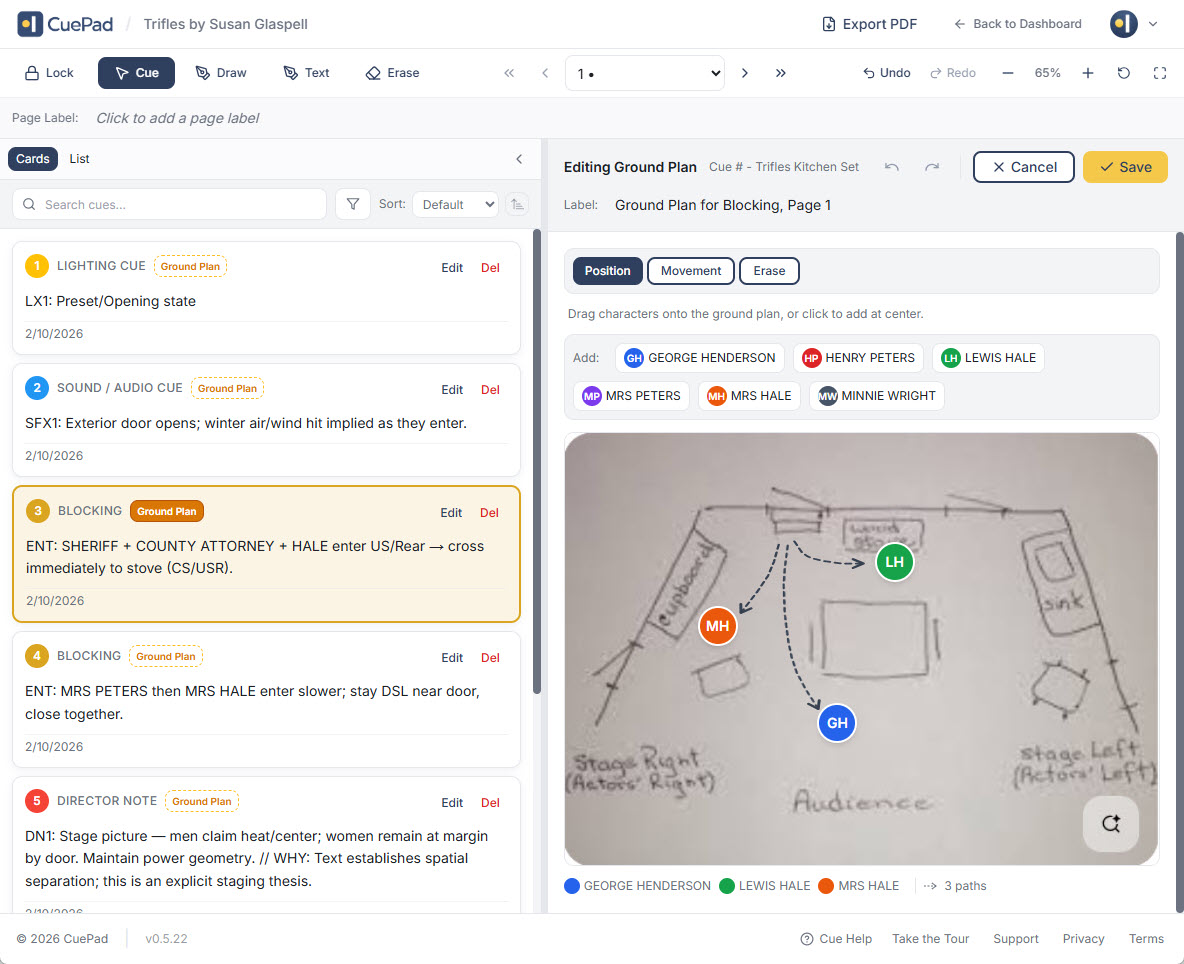
Upload ground plan images and place character markers directly on them. Draw movement paths to choreograph staging, and assign ground plans to specific cues. Each cue snapshots the ground plan at assignment time, preserving your blocking history even if you update the plan later.
- Upload multiple ground plans per script
- Place and label character markers with drag-and-drop
- Draw movement paths between positions
- Cues snapshot the ground plan state at assignment time
Mark up your script your way
Freeform Annotations
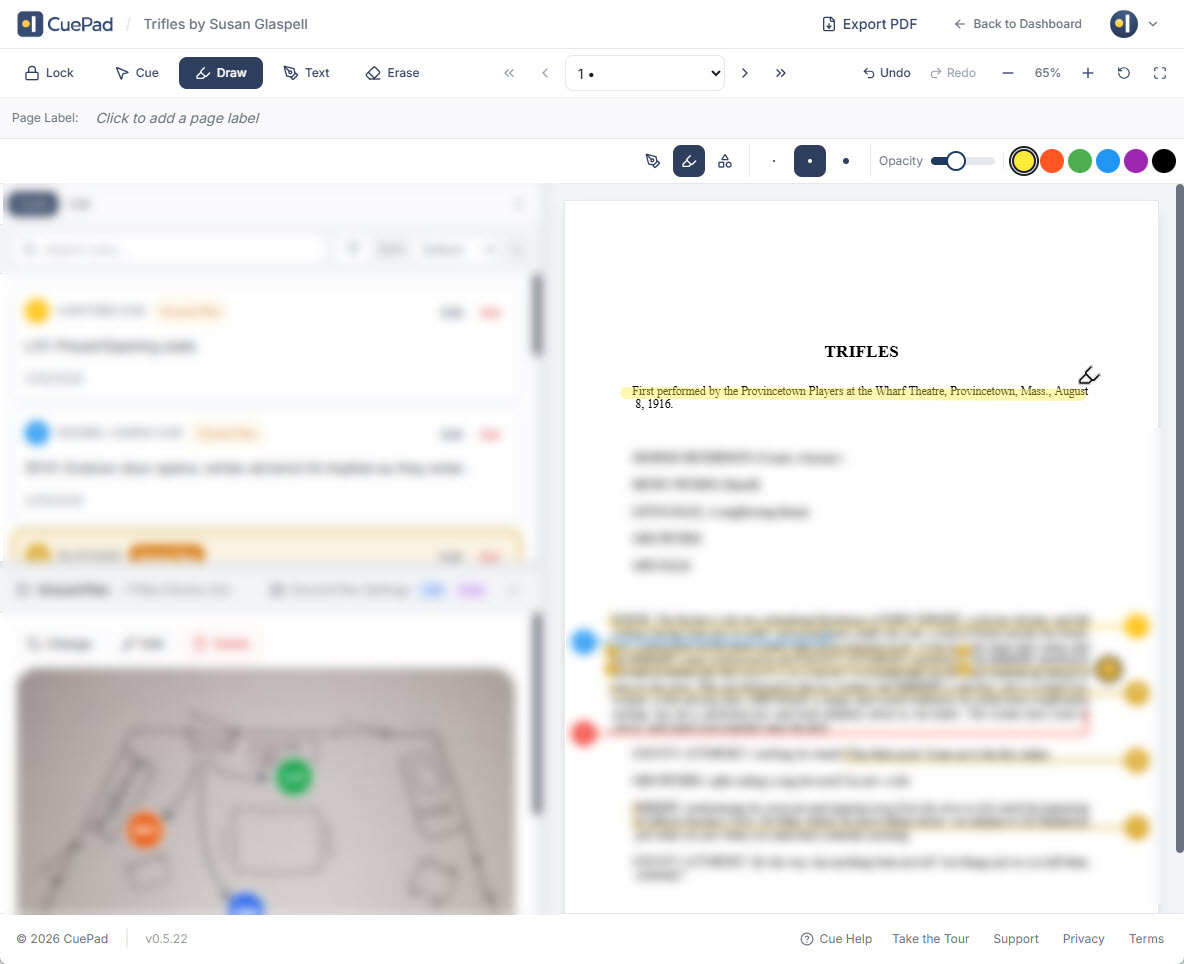
Highlight key lines, draw freehand notes with script strokes, or place resizable text boxes with custom fonts, sizes, and formatting. Every annotation lives on its specific page and renders cleanly alongside your cues.
- Freeform highlighting with adjustable colors
- Script strokes for handwritten notes and markings
- Resizable text boxes with font, size, color, and formatting controls
- Full Apple Pencil support for natural annotation on iPad
Experiment without risk
Full Undo & Redo
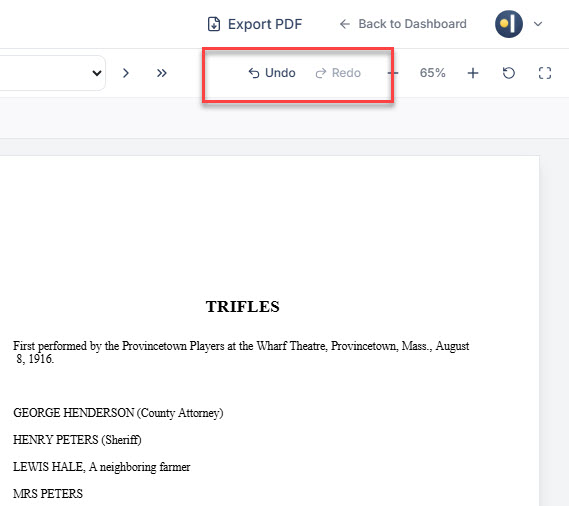
Every action — creating cues, drawing highlights, placing text boxes, editing ground plans — supports full undo and redo. Use keyboard shortcuts or toolbar buttons to step backward and forward through your changes with confidence.
- Undo/redo for all cue, highlight, stroke, and text box operations
- Keyboard shortcuts: Ctrl/Cmd+Z to undo, Ctrl/Cmd+Shift+Z to redo
- Session-based stack so your undo history stays clean
- Grouped operations — multi-step actions undo as a single step
Collaborate with your team
Script Sharing
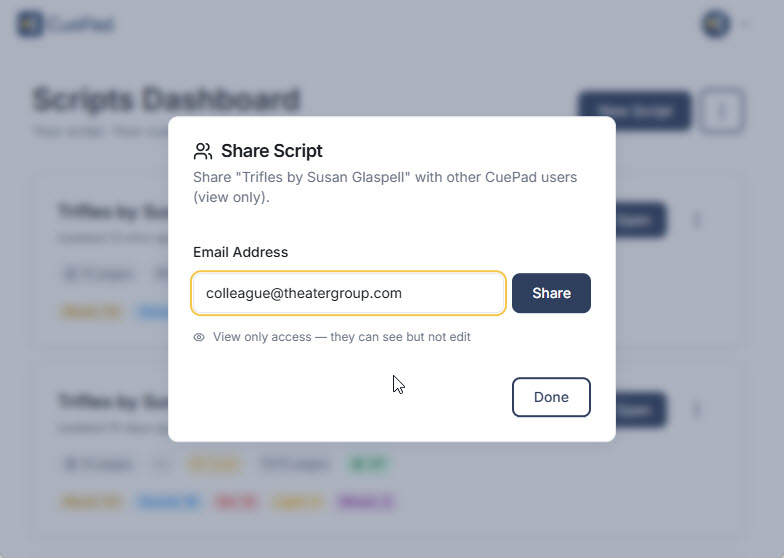
Share any script with collaborators as a read-only link. Your team can view the full annotated script — cues, blocking, highlights, and all — without being able to modify your work. Perfect for sharing your prompt book with stage managers, designers, or cast members.
- Share scripts with specific users by email
- Recipients see full annotations in read-only mode
- Revoke access at any time from your dashboard
- Read-Only Mode downloads data locally for fast, offline-ready viewing
Your work is always safe
Full-Fidelity Backup
Save a complete .cuepad backup file that preserves every cue, annotation, ground plan, and setting. Transfer scripts between accounts, archive finished productions, or restore your work from a backup with everything intact — nothing is ever lost.
- Full .cuepad backup format preserving every data point and asset
- Import .cuepad files to restore scripts with all annotations intact
- Transfer scripts between accounts or team members
- Cloud sync ensures your work is always saved automatically

Desktop, tablet, and touch
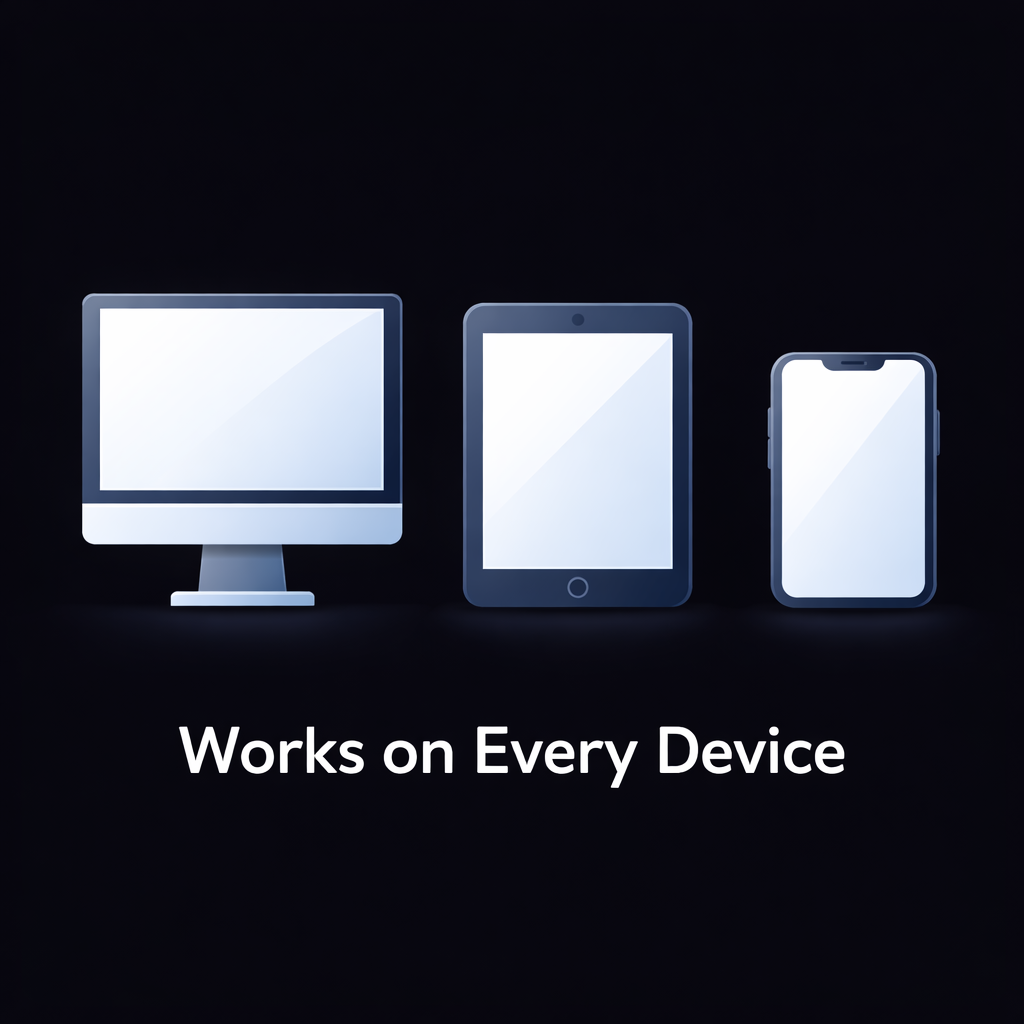
Works on Every Device
CuePad is fully responsive with dedicated touch interactions. Pinch to zoom, swipe between pages with two fingers, and annotate naturally with Apple Pencil on iPad. Your annotations sync to the cloud, so you pick up exactly where you left off on any device.
- Responsive layout adapts from phone to desktop
- Pinch-to-zoom and two-finger page swiping on touch devices
- Apple Pencil support for drawing and annotation
- Cloud sync — your last page, zoom level, and layout are remembered
Ready to try it?
Upload your first script and start annotating in under a minute. No credit card required.
Get Started Free